Background Screening With Verified First
Using Verified First for Background Screening
Volgistics has partnered with Verified First to simplify the background screening process so you can be sure your volunteers are approved to serve. We are excited about this partnership because it provides integration so you can start the background screening process from within your Volgistics account with a click of a button. However, we want to stress that the partnership is based on the integration and we are still separate companies. Because of this, Verified First handles its own sign-up, pricing, payment, policies, and customer service.
Your Volgistics service fees will not be impacted by whether or not you choose to use Verified First's services to perform background screenings. We think Verified First is a great choice because of their built-in integration and awesome customer service, but we want to make sure you know you are still free to use whatever provider fits your needs.
Make Sure You Can Use Verified First
Before you get started, it's a good idea to make sure Verified First will work for your organization's background screening needs. The first thing to consider is the technical side of things, and then you can look at other factors.
For the technical aspect of using Verified First, the integration uses a web browser extension available with Chrome, Edge, Firefox, or Safari so you will need to make sure you can use one of those web browsers.
The next thing to consider is whether or not your volunteers are located in the United States or Canada. Currently, Verified First only provides in-depth background screening in the U.S. and Canada. If your organization is outside of these countries, verification and criminal record checks vary from country to country.
Another factor to consider is whether you are locked into a contract with your current background screening provider. If so, you may want to wait until that contract expires before switching. You and your organization will need to decide the pros and cons of breaking the current contract early or waiting.
Get Started with Verified First
To use Verified First, the first thing you will need to do is get a Verified First account. The costs of background screenings vary depending on things such as how many volunteers and applicants you screen, and how in-depth of a screening you require. For example, a complete criminal background check will require different database inquiries than a Department of Transportation report so the cost for the criminal background screening is different. Verified First only charges you when a background check is performed and in some cases Verified First can provide a way to allow volunteers to pay their own fee for the background screening.
We encourage you to contact Verified First directly for more specific information. You can do this by calling 844-332-5690, or by clicking this link to go to the Verified First website: Get a Background Screening Quote.
Get a Web Browser Extension
After you have an account with Verified First, you will need to get the VF Connector web browser extension to enable the integration with Volgistics. Click the icon for whichever web browser you use to start the process. Then follow the steps to download and install the VF Connector.
Web Browser Extensions
| Google Chrome | Microsoft Edge | Mozilla Firefox | Mac Safari |
|---|---|---|---|
 |  |  |  |
Extension Not Working?
The majority of users will not need to do anything more after they add the Verified First extension. The Verified First interface will show on the Core tab of volunteer records as long as they're using the web browser where the extension was added. However, some users may need to set special permissions or change access settings to get the extension to work. This could be true if their web browser is in private or incognito mode, but it is more likely if the network or web browser in use has group policy settings controlled by an IT team. This is a common practice in medical, education, and government settings.
If you are having trouble seeing or using the Verified First extension, open your web browser's menu and look for an item related to extensions. There will usually be an option to manage extensions that will take you to a page where you can make sure the permissions and access settings allow the extension to be used with www.volgistics.com. The exact steps vary depending on the web browser so you'll need to search your browser's documentation or contact your IT team if you are not able to make the needed changes.
Perform a Background Screening
When you've completed the process of getting an account with Verified First and downloaded the browser extension, there will be a new button added to the Core tab of your volunteer records.
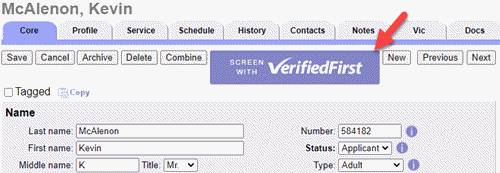
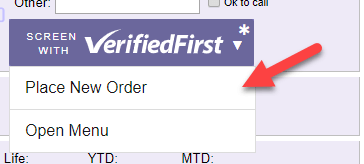
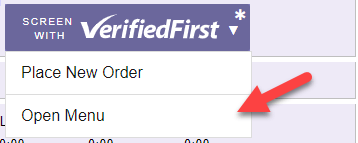
To start the background screening process, simply move your cursor to the button and select Place New Order.
If your Verified First menu was collapsed, it will be expanded to the right side of your volunteer record.

You can select from the screening packages you created with Verified First, and then click the SEND INVITE button on the Verified First menu to start the screening.
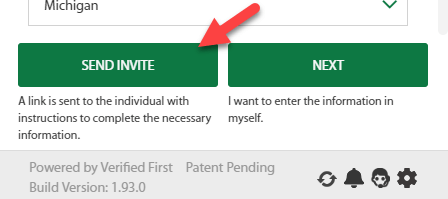
Verified First will contact the volunteer and ask them to complete the information needed to perform the screening.
Receive Background Screening Results
When the background screening is complete, Verified First will send you an email message to notify you. You can then go to the Verified First Menu to see the results.
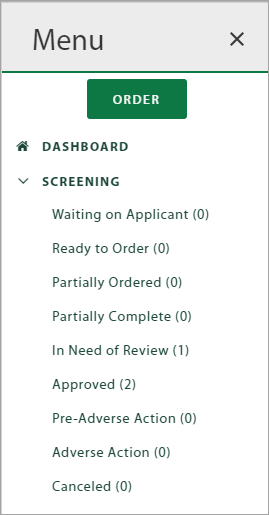
If you do not see the Verified First interface, go to a volunteer record, move your cursor over the Verified First button on the Core tab and select Open Menu.
Track Background Screening Process
The Verified First Menu tracks each step in the background screening process. This information will not automatically be added to your Volgistics account. If you want to track this in Volgistics also, you will need to create Checklist items so that System Operators can record the date a step was completed. It is up to you to decide how many steps are tracked. Some organizations will want to make an item to identify each step in the process such as the screening was ordered, the screening is waiting on the volunteer, etc. Other organizations will just want to track the date the volunteer was approved.
You can create a Checklist item from the Setup menu inside your account. If you track each step, you can make the items follow each other in the order the steps need to be completed. Find Volunteers Due for a Checklist Item shows how to locate the volunteers in your account who need to complete an item, and you can mark them complete as volunteers finish them.
Tip!
When you run a report such as the Volunteer Date History (stock) report, or certain custom reports that include Checklist date information, you can limit the report to just a certain Checklist item (or certain items).